The New Theater Mode
Everything around Phiewer goes dark, only your images stay in the light.
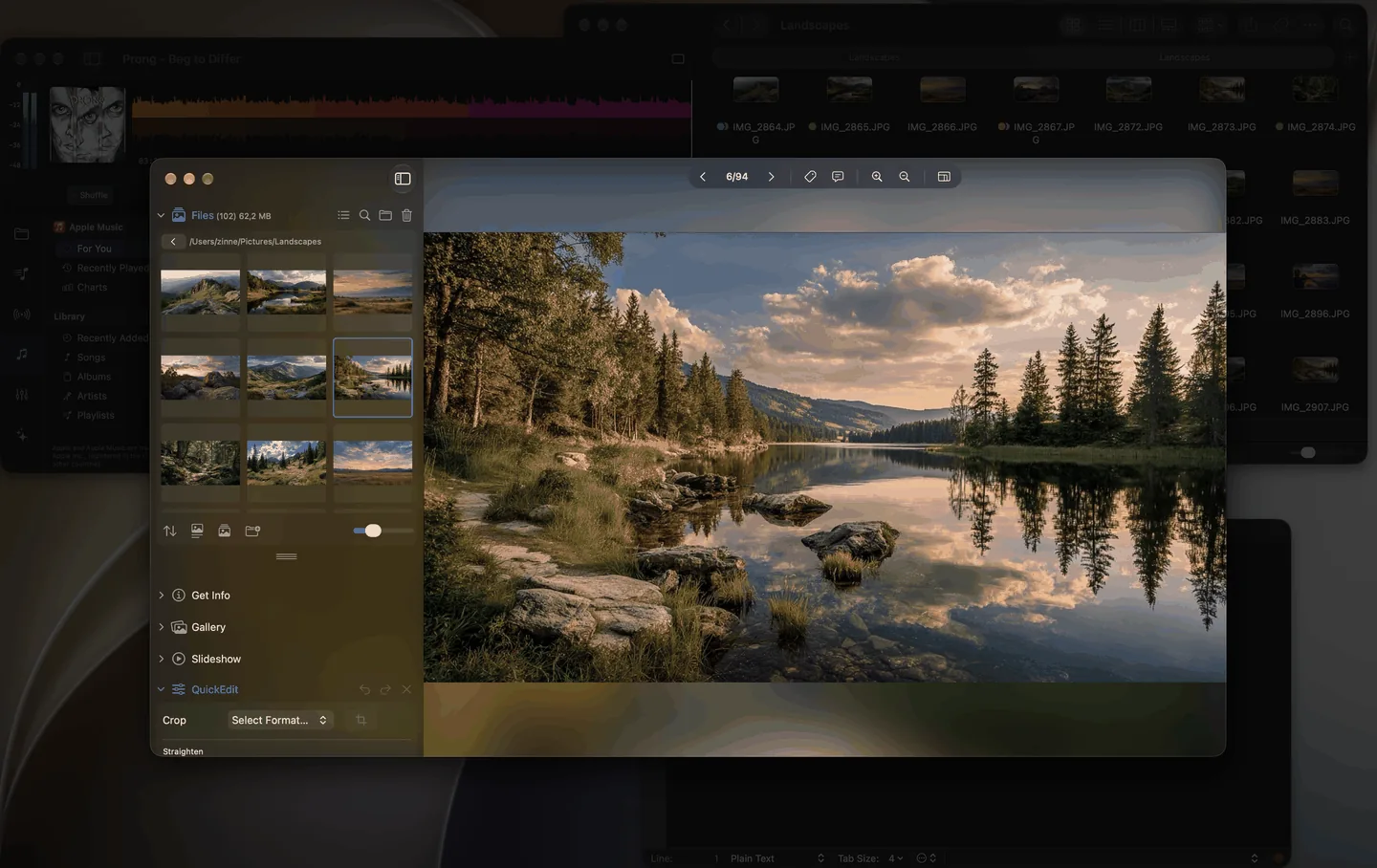
Theater mode in Phiewer: the desktop and other apps are dimmed
A colorful desktop, lots of icons, a mail app in the background: when you look at photos, all of it distracts. Especially when Phiewer is not running in full screen, every image competes with whatever is going on around it on the screen.
The new theater mode solves this very simply. It dims everything that does not belong to Phiewer, just like in a movie theater when the lights go down. This request also came straight from your feedback.
How to turn on theater mode
You will find theater mode in Settings under Appearance. There you switch it on and use the slider to set how strong the dimming is, from very light (10 percent) to almost black (95 percent).
It is quicker via the main menu under View or with the shortcut ⌃⌘D. The shortcut can be reassigned freely in Settings.
What theater mode does
- • Everything around it goes dark. The desktop, its icons and the windows of other apps fade into the background. Phiewer itself stays bright.
- • On every screen. If you have several displays connected, each one is dimmed.
- • Gone as soon as you switch. When you switch to another app, the dimming fades out automatically. When you come back to Phiewer, it is there again.
- • Stays on. Phiewer remembers your setting, even after a restart.
Phiewer's settings and dialogs stay bright and easy to read.
Calm for your images
Theater mode is ideal when you want to look at images in peace without switching to full screen right away. The sidebar and tools stay within reach, and your images are still the center of attention.
Update now
Theater mode is part of Phiewer 7.1 and is available as a free update for all Phiewer users on the Mac App Store. The free version (lite) includes the full image viewer, but not theater mode.