
The New Folder View
Show or hide folders with a single click, in the thumbnail view and in the folder view, each independently of the other.
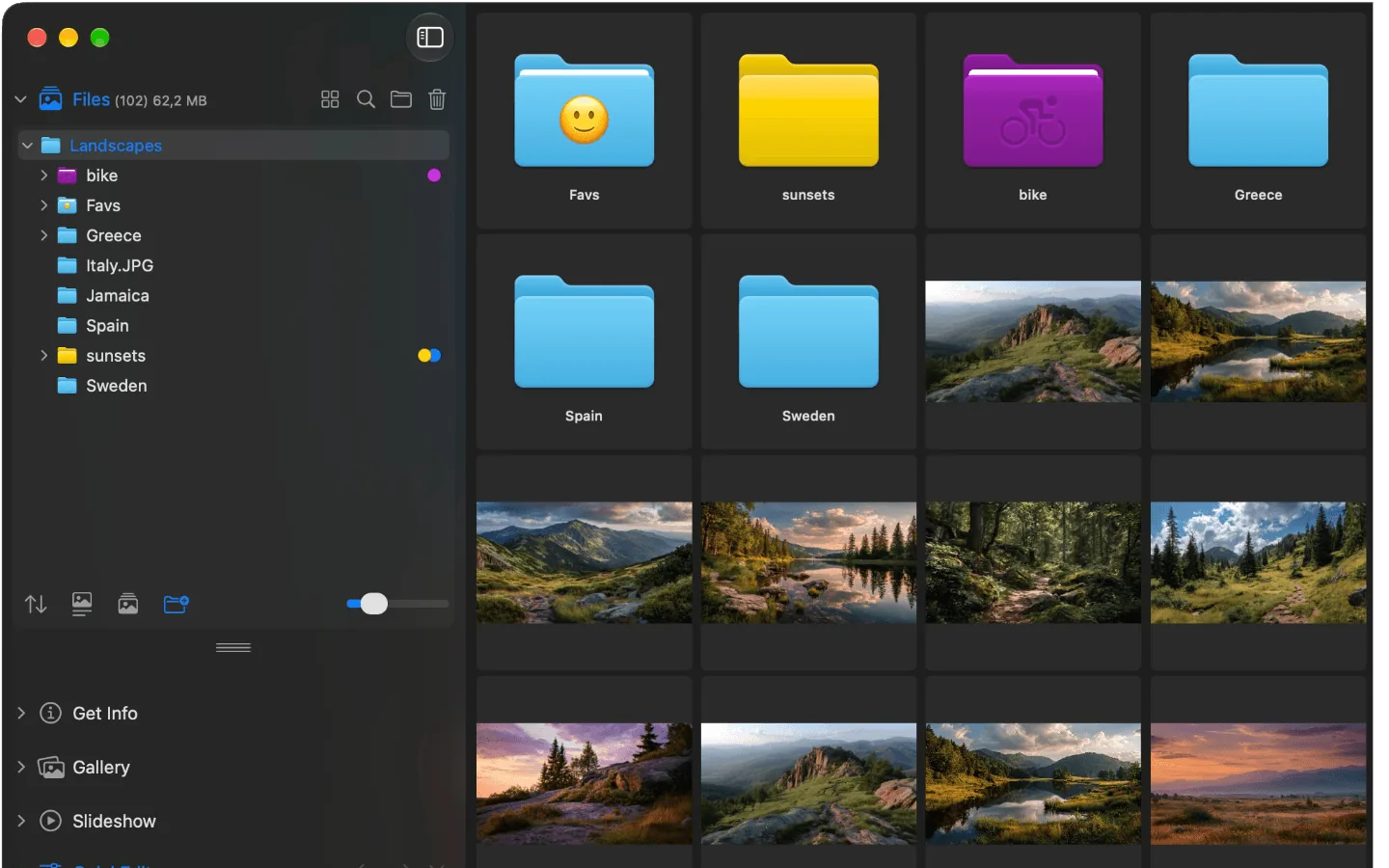
The folder view in Phiewer: folders and images together in the content area
Sometimes you only want to see images while browsing. And sometimes you want to see right away which folders there are, so you can quickly click on. With Phiewer, you now decide for yourself.
New is a button that shows or hides folders. It works in the thumbnail view and in the folder view, and you set it separately for each view.
Where to find the button
The sidebar has a section called Files. At the bottom of this section there is now a new button with a folder icon  . One click shows the folders, another click hides them again.
You can also do this from the main menu under Files or with a keyboard shortcut: ⌥⌘O in the thumbnail view, ⇧⌥⌘O in the folder view.
What the button does in each view
The Files section has two views, and in each one the button shows the folders in a different place:
- • Thumbnail view. The folders appear between the thumbnails in the sidebar. This is on by default, just like the icon view in the Finder.
- • Folder view. The folders are listed on the left, and on the right, in the content area, you see the folder's contents as a grid. With the button, the folders also appear on the right, together with the images. This is off by default, because you already see the folders on the left, just like the list view in the Finder.
Both settings are independent of each other. So you can, for example, see only images in the thumbnail view and show the folders on the right in the folder view, whatever suits you.
Folders without images: information instead of an empty area
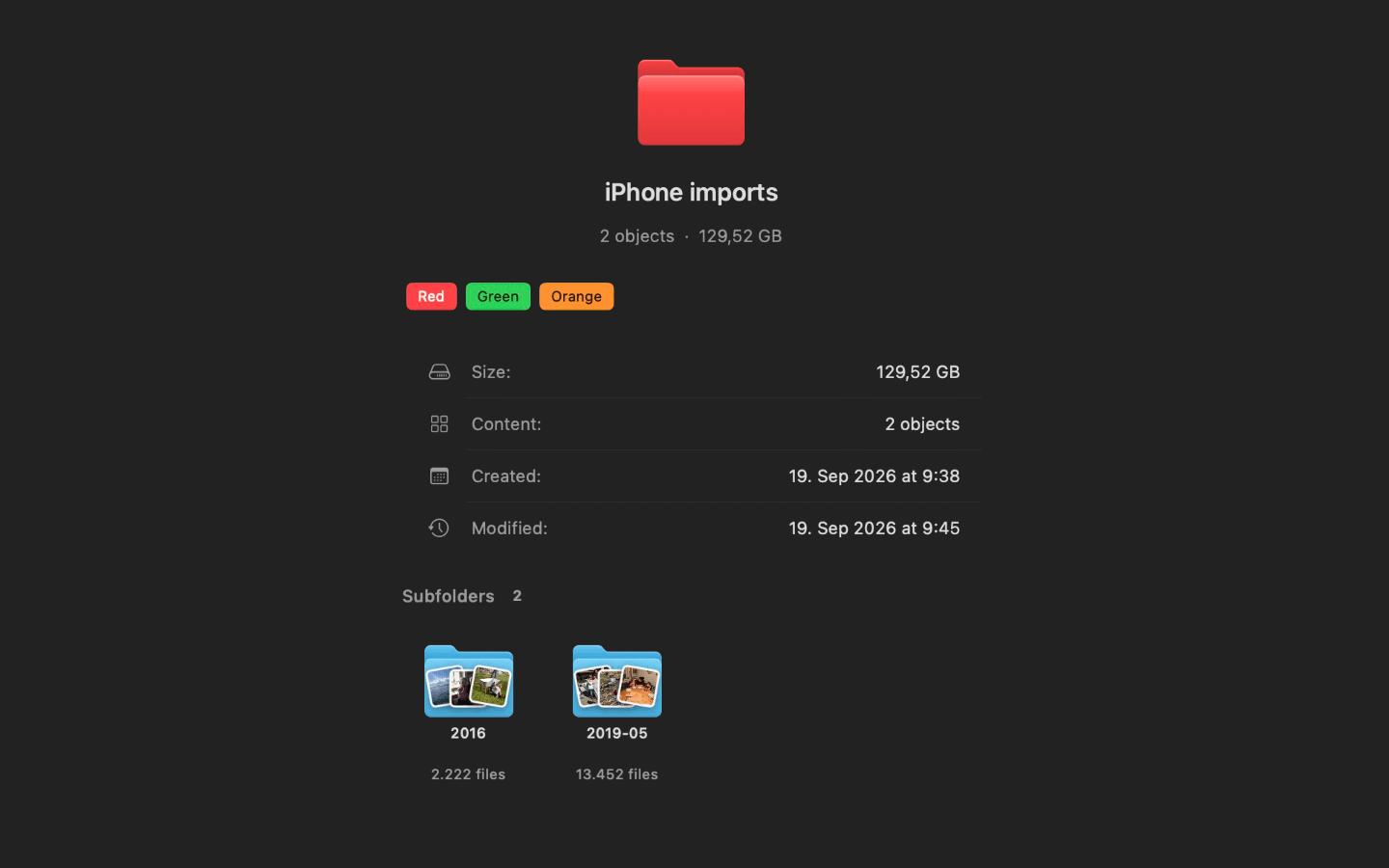
The folder view of a folder without images: folder information and subfolders with preview images
If a folder contains no images or videos, only other folders, the folder view does not show an empty area but an overview: the folder's name, number of items and total size, plus the creation and modification dates and any assigned tags. A right-click gives you the usual actions such as rename, tags or export.
Below that are all subfolders, each with up to three preview images from its contents on the folder icon. So you can see what to expect before opening it. One click selects a subfolder, a double-click opens it. From nine subfolders on, the overview switches to a compact list to keep the view tidy.
Open folders directly
You open folders that are shown with a double-click. Folders with a Finder tag appear in the color of their tag, so you find them again faster. And when you browse with the arrow keys in the folder view, you still jump only from image to image.
Just like the Finder
Thumbnail view with folders, folder view without: the default matches what you know from the Finder. If you prefer it differently, change it with one click.
Update now
The new folder view is part of Phiewer 7.1 and is available as a free update for all Phiewer users on the Mac App Store. The free version (lite) includes the full image viewer, but not the folder view and showing or hiding folders.